Add Agewise to Claude
Claude is an AI assistant made by Anthropic. Add Agewise, and you can ask Claude to find, compare and contact senior living communities in Canada using Agewise's directory.
Start setupBefore you begin
- A Claude account. A free one works. Sign up at claude.ai (opens in a new tab)
- A web browser. It's easiest on a computer.
- About 2 minutes.
- You don't need an Agewise account to search.
Which Claude plan do you have?
- Free plan: you can add 1 custom connector (Claude's name for an add-on like Agewise).
- Pro or Max: you can add more.
- Work account (Team or Enterprise): ask your account owner to add Agewise first.
Set it up in Claude
Or copy this address and paste it into Claude yourself:
Step 1: Open Claude's connector settings
Click Add Agewise to Claude above. It opens Claude's Customize page, at Connectors. Doing it yourself? In Claude's sidebar, click Customize, then Connectors. The + Add button is at the top right.

Step 2: Check what Claude shows
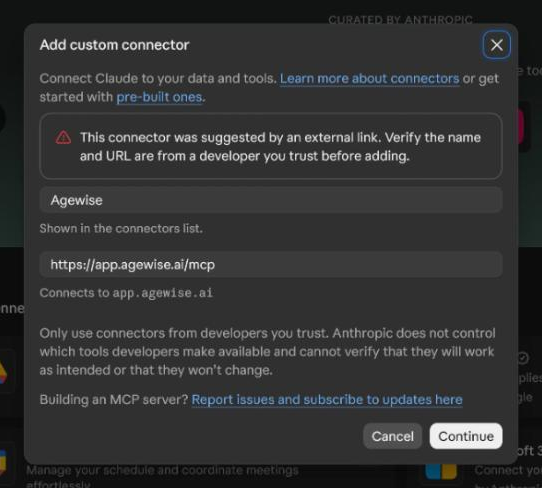
Claude opens a window called Add custom connector, with Agewise filled in. It says the connector was suggested by an external link. That's expected when you use the Add Agewise to Claude button. Check that the name says Agewise and the address is https://app.agewise.ai/mcp. Doing it yourself? Click + Add, then Add custom connector. Type Agewise in Name, paste the address into MCP server URL, then click Continue.
Step 3: Continue
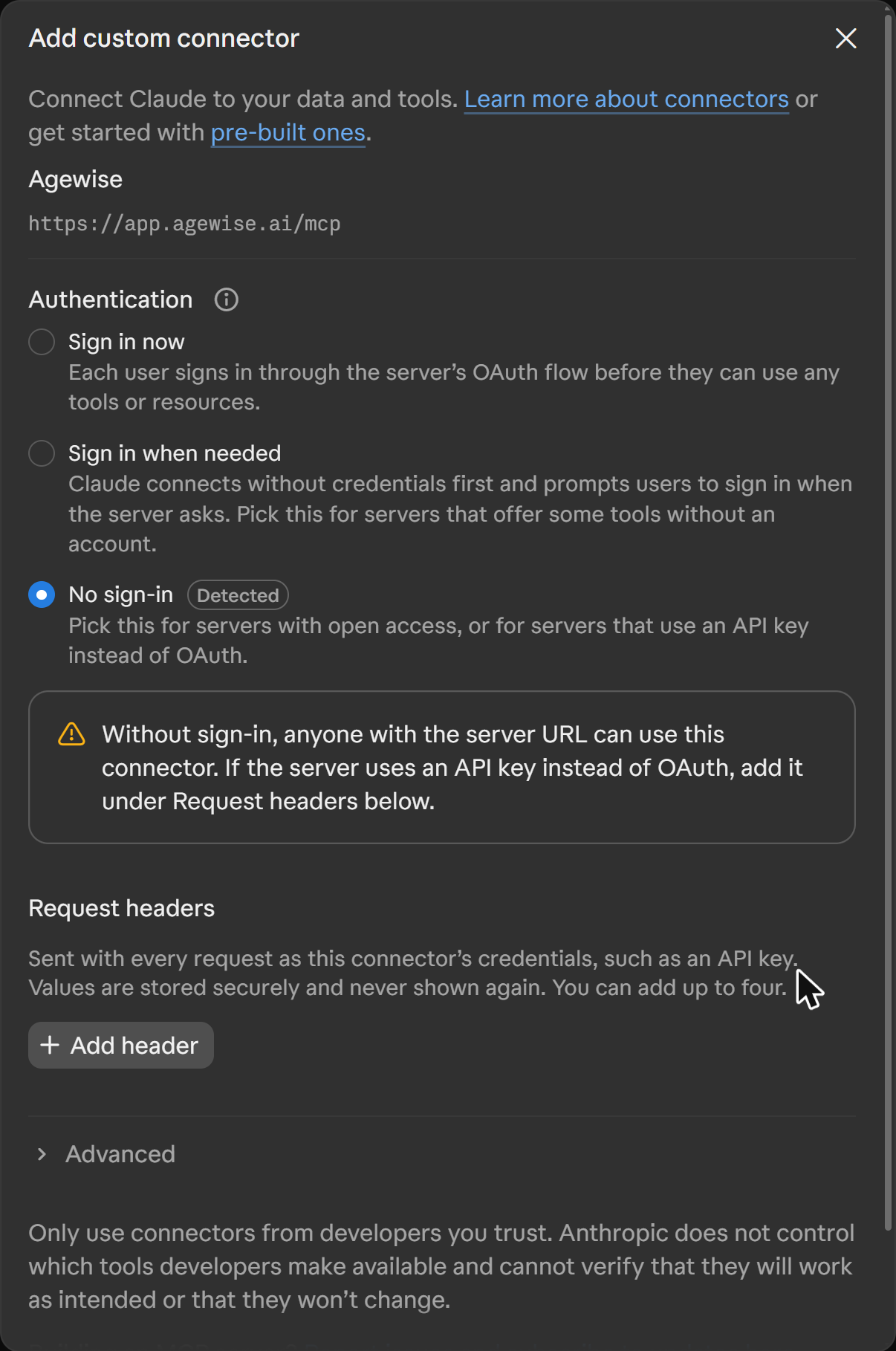
Click Continue. (Doing it yourself? That was your last click in step 2.) Claude then shows the second part of the same window.
Step 4: Choose how to sign in, then add it
Claude asks how to sign in, with three choices: Sign in now, Sign in when needed and No sign-in. For Agewise, No sign-in is already chosen. Claude marks it Detected. Keep it and click Add. You can only change this choice later by removing Agewise and adding it again. You don't need an Agewise account to search.
Step 5: Click Connect
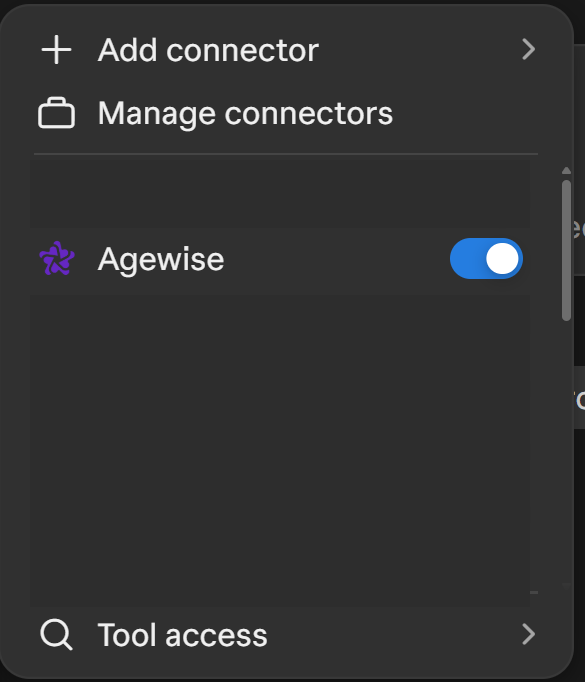
Claude's page for Agewise says You're not connected to Agewise yet. Click Connect. Claude connects Agewise right there: no sign-in page opens, Claude says Connected to Agewise., and the button changes to Disconnect. The page lists Agewise's tools, each marked Needs approval. Agewise then has a switch in a new chat's + > Connectors menu, and it is on by default.
Step 6: Turn Agewise on in a chat
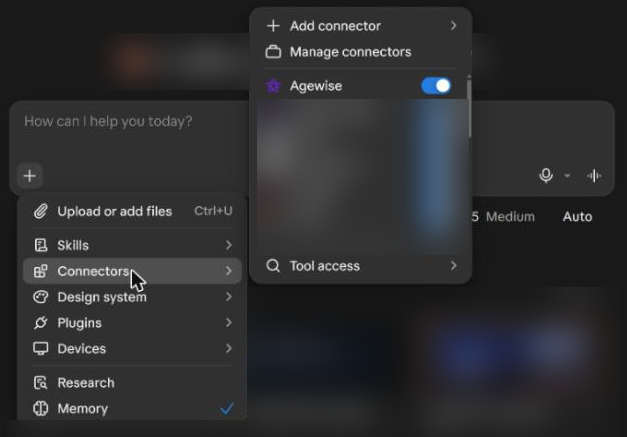
Start a new chat. Click +, choose Connectors, and check that Agewise is switched on. If Agewise isn't in the list, the same menu has Add connector and Manage connectors.
Try it
Copy this message, paste it into your new chat, and send it.
How you know it worked
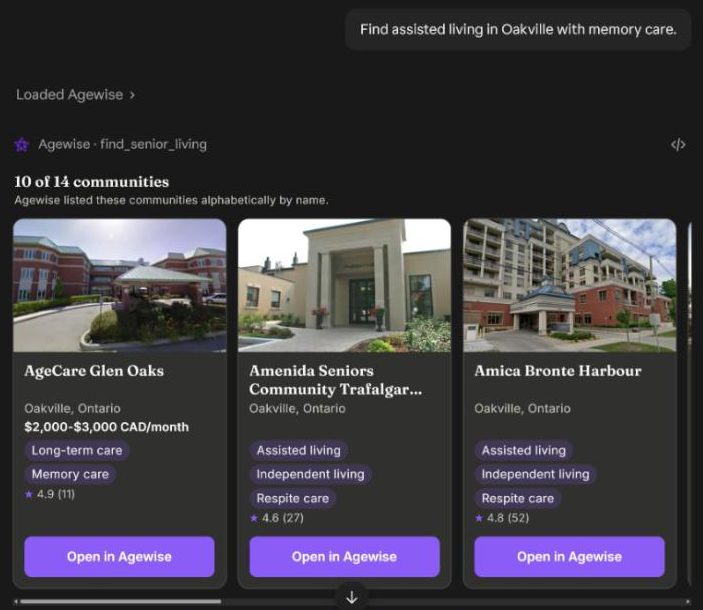
- Claude shows that it is using Agewise while it answers.
- The answer names communities and links to each one on Agewise.
- Communities are listed alphabetically, not ranked. Prices are what each community reports.
If something goes wrong
The button doesn't open Agewise in Claude
Make sure you're signed in at claude.ai in the same browser, then click Add Agewise to Claude again. Or add it yourself: copy the address above, then in Claude click Customize in the sidebar, then Connectors. Click + Add, then Add custom connector. Type Agewise in Name, paste the address into MCP server URL, then click Continue.
Claude won't let me add another connector
The free Claude plan allows 1 custom connector. To make room, click Customize in the sidebar, then Connectors, and remove one you no longer use. Pro and Max plans can add more.
Claude answered without using Agewise
In the chat, click +, choose Connectors and check that Agewise is switched on. If it isn't in the list, it still needs Connect: click Customize in the sidebar, then Connectors, and click Connect next to Agewise. Then ask again, beginning with the words "Use Agewise".
I use Claude through work
On Team and Enterprise plans, the account owner adds Agewise first, in Organization settings. Then click Customize in the sidebar, then Connectors, find Agewise and click Connect.
The menus look different
Claude changes its menus from time to time. If a step doesn't match what you see, search Claude's help for "custom connector".
How do I remove Agewise?
In Claude, click Customize in the sidebar, then Connectors, choose Agewise, click ..., then Remove. You can add it again any time. To change the sign-in choice, remove Agewise and add it again.
Still stuck? Email us at hello@agewise.ai.
The details
For anyone who wants the fine print, including privacy and directory reviewers.
What it does and doesn't do
What it does
- Searches the Agewise directory of retirement communities and care options, with no account needed.
- Shows the details we hold for a community, and puts two or three communities side by side.
- Looks up the price bands communities have published, what the care types mean, and Agewise's published guides on senior living in Canada.
- Sends an inquiry to one to three communities for you, after you sign in to Agewise. Agewise only sends an inquiry the assistant has first prepared and shown you; ask it to show you what would be sent. The community receives your message and your contact details: your first name, your account email and your account phone number if you have one, and any choices you gave about who the inquiry is for, when a move might happen and how you prefer to be contacted. It is sent only if your account allows Agewise to contact communities on your behalf (the AI contact setting). An inquiry cannot be unsent.
What it does not do
- It does not rank communities or recommend one over another. Results come back in a plain order, and the assistant is told that is not a ranking.
- In this connector, search results are listed alphabetically by name and a comparison keeps the order you gave. What a community pays Agewise does not change either, or whether a community appears.
- It does not give medical, legal or financial advice. Written search, detail and comparison results carry a short disclaimer and a link to each community's page in the Agewise app, which asks you to sign in first. Spoken answers carry the disclaimer only.
Your data and sign-in
Searching and looking things up is anonymous. You only sign in to Agewise when you ask the assistant to send an inquiry to a community. If you have no Agewise account, signing in creates one.
How Agewise handles this is set out in the Privacy Policy.
Everything the assistant can do
- Find communities
- Search by place, care need, language, services or amenities, suite type or postal area. Find a community by name, find communities near another community or near a hospital, match a town name, and see an overview of an area. No sign-in.
- find_senior_living, find_community_by_name, find_communities_by_features, list_feature_options, find_communities_by_suite_type, find_communities_by_postal_area, find_communities_near_community, find_communities_near_hospital, resolve_place_name, get_area_overview
- Look at one community
- The details we hold for a community, its suite types, which services are included and which cost extra, and the hospitals nearest to it. No sign-in.
- get_community, get_suite_options, get_included_and_extra_services, get_hospitals_near_community
- Compare
- Two or three communities side by side, in the order you gave them, and which of the needs you named each community lists. No sign-in.
- compare_communities, check_communities_against_needs
- Prices and care types
- The price band a community has chosen to publish for each type of care it offers, and plain definitions of the care types. No sign-in.
- get_care_type_prices, explain_care_types
- Guides and questions
- Agewise's published guides on senior living in Canada (care levels, costs, touring, provincial rules), short answers drawn from them, questions to ask on a tour, and a short set of questions to reflect on afterwards. No sign-in.
- agewise_guide, browse_guides, get_article, search_guide_answers, get_tour_questions, get_after_tour_questions
- Send an inquiry (signed in)
- Agewise only sends an inquiry the assistant has first prepared and shown you; ask it to show you what would be sent. The inquiry goes to one to three communities. Needs a signed-in Agewise account and the AI contact setting turned on for your account; otherwise nothing is sent.
- prepare_inquiry, send_inquiry
If something doesn't work
- If the assistant cannot reach Agewise, check that the address is exactly https://app.agewise.ai/mcp, or use the Add to Claude button.
- If the connector says it is not currently enabled, try again later, or use agewise.ai.
- If it says to try again shortly, wait a moment and ask again.
- If sign-in is refused or abandoned, nothing is sent and searching still works. Ask again and choose Connect.
- If the assistant says your Agewise account needs one sign-in first, sign in at agewise.ai once, then ask again.
- If the AI contact setting is off on your account, nothing is sent. Turn it on on the Avery & Privacy page in the Agewise app (app.agewise.ai/avery-privacy), then ask again.
- If a community cannot be contacted from the assistant, contact it on agewise.ai.
Claude renames its menus from time to time. If a step doesn't match what you see, search Claude's help for "custom connector".
For community operators
If you run a community, you can keep it out of Agewise answers inside AI assistants. Open your community in Agewise, go to Profile, then Community, and turn on "Exclude from AI assistants (ChatGPT, Claude)". Operators with publish rights, or an Agewise admin, can change it. It takes effect right away and you do not need to publish.
Questions or something not working? Email hello@agewise.ai.